Terminal > Knowledge & collaboration
Admin Panel
The Warp Admin Panel is a browser-based interface for managing membership, billing, and shared settings for teams and Enterprise workspaces.
Use the browser-based Warp Admin Panel to manage membership, billing, and shared configuration for a team or an Enterprise workspace.
Your role determines administrative access; your plan and workspace policies determine editable settings.
Accessing the Admin Panel
Section titled “Accessing the Admin Panel”For team admins
Section titled “For team admins”- Open the Admin Panel in a browser and sign in.
- Confirm the selected team or workspace before changing a setting.
- Open the section for the setting you want to change.
In the Warp Factories web app, admins can also open the account menu and click Admin panel. See Opening the Admin Panel for the factory billing route.
For team members
Section titled “For team members”Team members see enforced settings in their personal Warp Settings. A disabled control can show “Your organization has configured this setting.” Ask the appropriate team or workspace admin to review it.
How settings enforcement works
Section titled “How settings enforcement works”Being an admin does not make every setting editable. In Enterprise workspaces, workspace admins can enforce supported settings across teams or let each team decide. See Workspace settings and team settings.
Setting enforcement levels
Section titled “Setting enforcement levels”| Setting state | What it means |
|---|---|
| Organization enforced | Members cannot override the configured value |
| Respect User Setting | Individual members control their own preference |
| Tier restricted | The plan does not permit changing the control |
For supported workspace settings, Respect Team Setting delegates the choice to the team. Enforced values are locked for team admins.
Test policies with an approved group before broader enforcement. Confirm the selected scope before saving.
Plan limitations
Section titled “Plan limitations”A plan-locked setting shows “Configuring this setting is not available on your plan.” Review plans, pricing, and refunds for the distinction between Terminal subscriptions and factory plans.
See Managing admins for multiple-admin availability by product and plan.
Warp Factories plan differences include:
| Plan | Data controls and usage visibility |
|---|---|
| Start | Does not include Scale’s shared data controls or per-user team usage reporting |
| Scale | Admins control content collection, cloud conversation storage, and telemetry collection; admins see per-user team usage totals with unlimited history, while non-admins see only their own usage |
| Enterprise | Adds enforced secret redaction, a control to restrict direct API inference to the US, and customer-hosted data storage; usage reporting includes per-user and cost-type breakdowns, including workspace platform usage |
The direct API inference control is not a guarantee that all data stays in the US. For customer-hosted run data, see Self-hosted data storage.
Admin Panel sections
Section titled “Admin Panel sections”AI settings
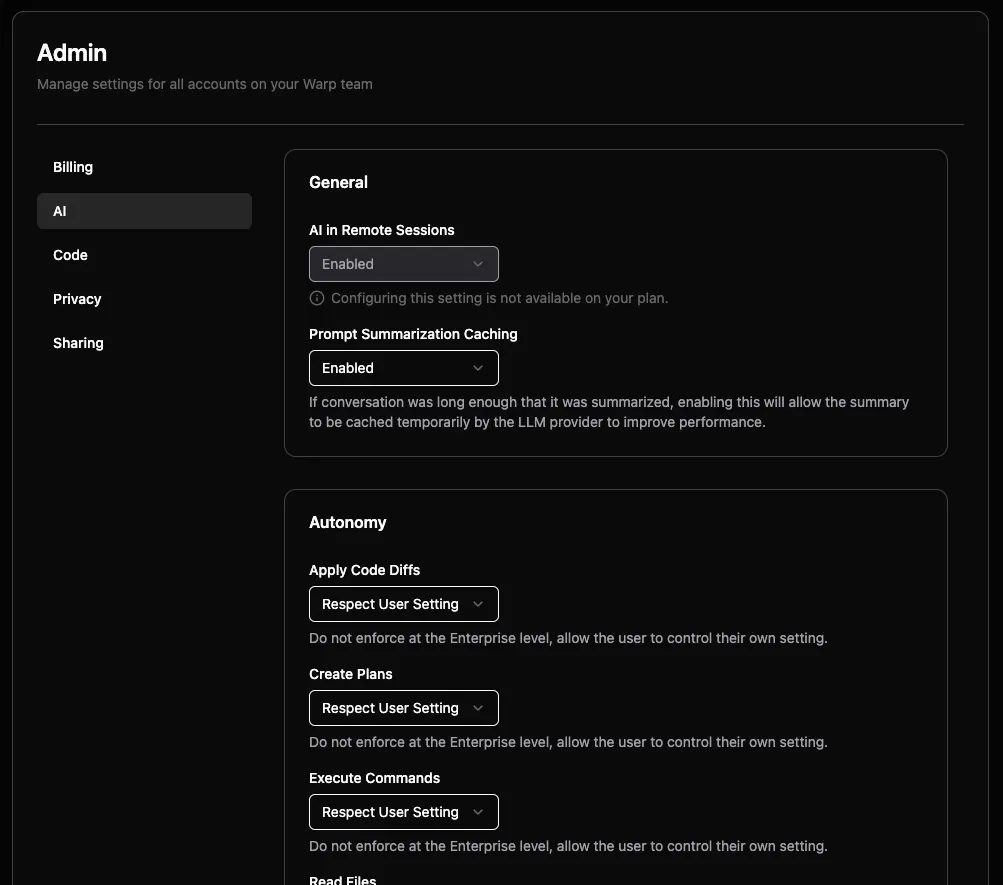
Section titled “AI settings”Configure agent autonomy and command permissions for the selected team.
- AI in remote sessions - Controls availability during SSH sessions and other remote connections.
- Prompt summarization caching - Controls provider caching used for long conversations. Provider retention follows the selected model and inference configuration. See model retention policies.
Autonomy settings
Section titled “Autonomy settings”Configure approval behavior for applying code diffs, creating plans, executing commands, and reading files. The available choices include Agent Decides, Always Ask, Always Allow, and Respect User Setting.
See Agent Profiles and permissions for the action permissions and personal configuration.
Directory and command control
Section titled “Directory and command control”Directory allowlists identify approved paths, such as ~/git/internal-tooling or /home/user/repos/public-*. Command allowlists and denylists use regular expressions.
Privacy settings
Section titled “Privacy settings”Content collection for service improvement
The “UGC Data Collection” dropdown controls how Warp collects your team’s content to improve the service:
- Disabled - Warp doesn’t collect team content for service improvement
- Enabled - Allow data collection for service improvement
- Respect User Setting - Let individual users decide
Telemetry collection is separate from team content collection. Neither control changes provider retention requirements or disables product storage.
Cloud conversation storage
Controls cloud sync of personal Terminal conversations. Disabling it doesn’t disable factory or other cloud agent run storage. See product storage for run-data categories and storage options.
Enterprise secret redaction
Enterprise teams can configure common secret patterns and custom regex patterns for redaction before requests reach LLM providers. See Secret redaction for scope and configuration.
Managing team content collection in the Admin Panel
Section titled “Managing team content collection in the Admin Panel”Admins can review team content collection in a browser. Editable choices depend on the plan and workspace policies:
- Open the Admin Panel for the team and go to Privacy.
- If “UGC Data Collection” is editable, choose Disabled to stop team content collection, or Respect User Setting, if available, to defer to individual preferences.
- After changing the value, reload the page and confirm it persists.
Plans that lock collection off keep it Disabled; admins cannot enable it or delegate to individual preferences. Ask a workspace admin about workspace-enforced values. For personal controls, see browser privacy preferences.
Code settings
Section titled “Code settings”Configure Codebase Context for team repositories. Where the control is available, choose Disabled, Enabled, or Respect User Setting.
Repository and file limits depend on the plan. See Codebase Context for indexing behavior and limits.
Models settings
Section titled “Models settings”Use the Models page for the controls included in your plan:
- Enterprise model restrictions - Admins can enable or disable individual models and configure BYOLLM routing. Self-serve plans don’t include a team-wide model-blocking control.
- Shared provider credentials - Configure team-managed API keys and endpoints on plans that include that control. Sharing credentials isn’t a model restriction.
- Enterprise custom routers - Share routing rules with the team. A router’s choices are separate from enforced model availability.
Models with provider-specific data retention requirements
Some models require provider retention and aren’t covered by Zero Data Retention (ZDR), even when team content collection is disabled. Review the complete exception list on the model-choice page. For Enterprise teams, these models are disabled by default. A workspace admin must explicitly enable them before team members can use them.
Self-serve customers must review their selected models and overrides using the Terminal procedure or factory ZDR guidance.
Billing settings
Section titled “Billing settings”On Billing, review usage and the controls available for your plan. Self-serve spend limits and auto-reload control additional purchases. Enterprise pools and spending controls follow the contract.
Enterprise supports monthly workspace, team, and per-user spend caps, separate local and cloud spending limits, and usage alerts.
For browser-based factory funding, upgrade, and payment routes, use Managing factory plans and billing.
Sharing settings
Section titled “Sharing settings”Configure direct-link and public-link access for Warp Drive resources:
- Direct link sharing - Determines whether resources can be shared by link and whether access is limited to team members.
- Anyone with link sharing - Determines whether people outside the team can open a shared resource.
See Warp Drive sharing before changing access to existing resources.
Platform settings
Section titled “Platform settings”Configure shared cloud-agent settings for the selected team.
- Agent artifact attachments - Choose Disabled, Link only, or Embed for screenshots and videos. See Screenshots and videos in pull requests for the security implications.
- Enabled GitHub Orgs - Associates a team with GitHub App installations for the supported standalone cloud-agent workflows.
In the Admin Panel, open Platform. Under Enabled GitHub Orgs, select the team’s organizations.

Repository access comes from the GitHub App installation’s selection in GitHub settings. Personal API key, agent API key, and integration-triggered runs use different identities. See Team GitHub authorization rather than applying one identity rule to every workflow.
Multi-admin functionality
Section titled “Multi-admin functionality”Promoting and demoting admins
Section titled “Promoting and demoting admins”Follow Promoting or demoting admins to change administration access on a supported plan.
Troubleshooting
Section titled “Troubleshooting”Users can’t see new settings
Section titled “Users can’t see new settings”Confirm that you changed the intended team or workspace and that the setting isn’t delegated to the user. Check the affected user’s membership and reload Settings before testing again.
Setting is grayed out in Admin Panel
Section titled “Setting is grayed out in Admin Panel”Check whether the control is restricted by the plan or locked by a workspace policy. Ask a workspace admin about an enforced value. Use plans and pricing for plan requirements.
Command allowlist not working
Section titled “Command allowlist not working”Check the regex, autonomy setting, and command denylist together. A matching denylist rule still requires approval. See Agent Profiles and permissions.
Responding to security incidents
Section titled “Responding to security incidents”Review the affected run, agent permissions, and applicable team and workspace policies.
Support
Section titled “Support”For access problems, contact support@warp.dev or your Enterprise support channel.
Related pages
Section titled “Related pages”- Managing team membership
- Roles and permissions
- Workspaces for Enterprise teams
- Managing factory plans and billing
- Getting started for admins - Configure Enterprise SSO, membership, and policies